
Selection
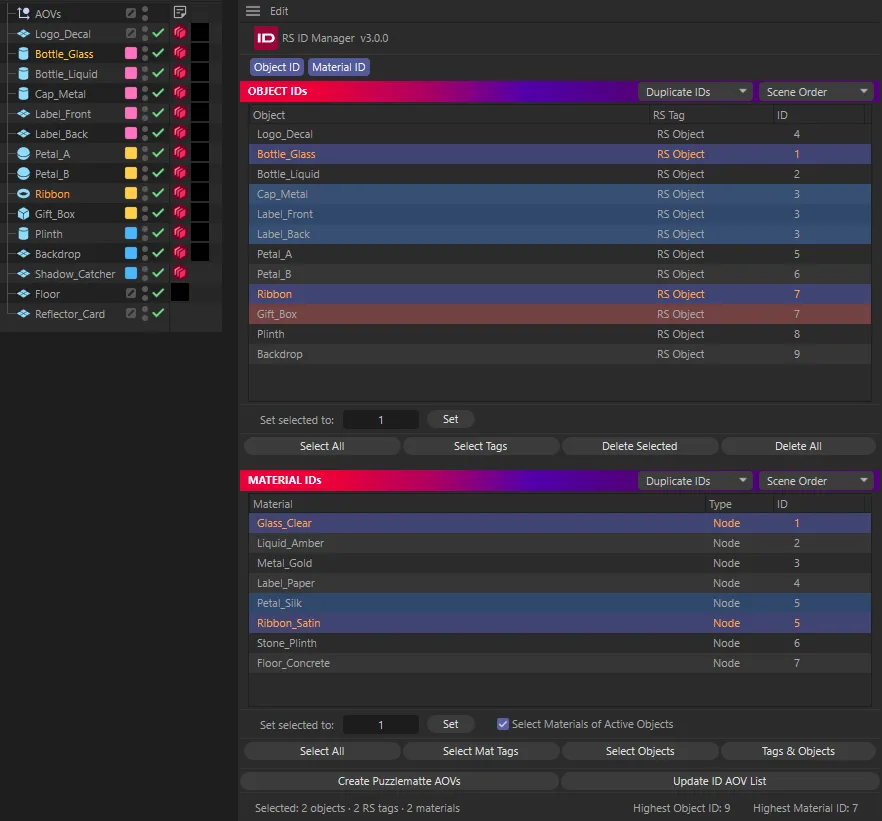
RS ID Manager has no selection of its own. The highlighted rows are what is selected in Cinema 4D, and selecting in the panel selects in Cinema 4D. Whatever you select, wherever you select it, is what Set writes to.
Objects
Section titled “Objects”Clicking a row selects its object in the Object Manager. Going the other way, a row is highlighted when any of these is selected:
- its RS Object tag;
- its object;
- any other tag on its object.
Materials
Section titled “Materials”Clicking a row selects the material in the Material Manager. A plain click also clears the object and tag selection, so nothing else stays highlighted by accident. A row is highlighted when:
- the material is selected in the Material Manager;
- a material tag that uses it is selected;
- an object carrying it is selected, while Select Materials of Active Objects is on.
Things with no ID yet
Section titled “Things with no ID yet”Selected objects with no RS Object tag, tags with no ID, and Redshift materials with no Material ID can’t have ordinary rows, so they appear greyed at the top of their pane:
| Group | Pane |
|---|---|
| Selected — no RS tag | OBJECT IDs |
| Selected — RS tag, no ID | OBJECT IDs |
| Selected — no Material ID | MATERIAL IDs |
Set gives them an ID, and they move into the list.
The footer
Section titled “The footer”The footer counts the selection, for example:
Selected: 4 objects (2 untagged) · 3 RS tags · 5 materials
untagged is how many of the selected objects have no RS Object tag — Set will add one to each. With nothing selected it reads Nothing selected.
Selecting from the panel
Section titled “Selecting from the panel”The buttons under each list select things for you — every listed object or material, RS tags, material tags, or the objects that use a material. See The panel.