
Material IDs
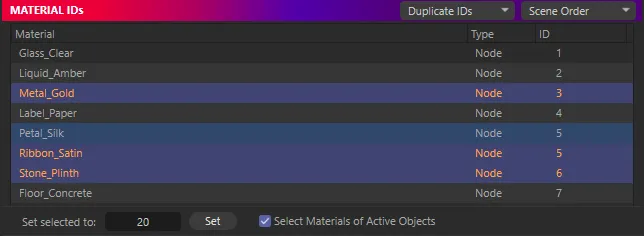
A Redshift material’s ID lives on its Output node, as Material ID. The MATERIAL IDs pane reads and writes it for you, so you never have to open the node graph to find it.
What’s listed
Section titled “What’s listed”A row appears for every Redshift material with a Material ID of 1 or more. Both kinds of Redshift material are supported, and the Type column says which a material is:
- Node — Redshift node materials.
- Xpresso — legacy Xpresso-based Redshift materials.
Materials from other render engines are ignored.
Setting IDs on your selection
Section titled “Setting IDs on your selection”Set selected to: writes an ID to the selected materials, which are, in order:
- materials selected in the Material Manager;
- the materials of selected material tags;
- with Select Materials of Active Objects on (the default), the materials on the material tags of selected objects.
Each material is counted once. Type the ID and click Set. With more than one material, you choose Same ID or Unique IDs, as for Object IDs.
If any selected material isn’t a Redshift material, the rest are still set, and the panel lists the ones it couldn’t set afterwards.
Selected materials with no ID yet
Section titled “Selected materials with no ID yet”A selected Redshift material whose ID is 0 isn’t in the list yet, so it shows greyed at the top under Selected — no Material ID, ready for Set.
Select Materials of Active Objects
Section titled “Select Materials of Active Objects”On, selecting an object in the Object Manager also highlights its materials here, and Set writes to them. Turn it off when you want to set IDs on objects and materials separately without one following the other. The switch is remembered.
Editing a row
Section titled “Editing a row”Double-click the ID and type a new one. If the row is one of several highlighted rows, the new ID goes to all of them, through Set.
Setting an ID of 0 removes the material from the list.
Selecting from the list
Section titled “Selecting from the list”Clicking a row selects that material in the Material Manager. A plain click also clears any object and tag selection, so the highlighted rows are exactly what Set will write to. Add to the selection or take from it with the same modifier keys as any Cinema 4D list.
The buttons under the list find what uses a material:
| Button | What it does |
|---|---|
| Select All | Selects every listed material. |
| Select Mat Tags | Selects the material tags that use the highlighted materials. |
| Select Objects | Selects the objects that carry those tags. |
| Tags & Objects | Selects both. |