
Duplicates, colours & order
Each pane has two menus in its title bar: one for row colour and one for order. They are set per pane and remembered between sessions.
Duplicate IDs
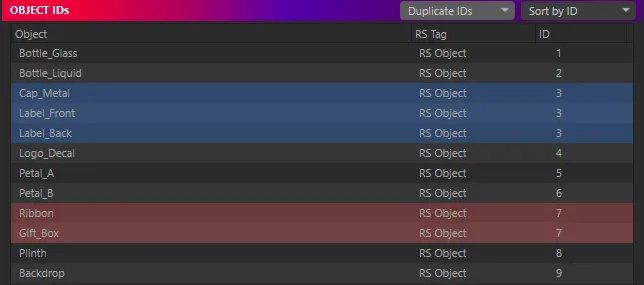
Section titled “Duplicate IDs”Two objects with the same Object ID land in the same puzzle-matte channel. Sometimes that is what you want — a whole car body as one matte — and sometimes it is a mistake. RS ID Manager makes duplicates easy to see either way:
- The ID cell of every row that shares its ID with another row is coloured, whatever the row colour menu says. Each duplicate group gets its own colour, and the same ID keeps the same colour every time.
- With the row colour menu on Duplicate IDs, the whole row is tinted too.
Duplicates are found within a pane: an Object ID and a Material ID with the same number are not duplicates of each other.
Row colour
Section titled “Row colour”| Option | What it does |
|---|---|
| No Colour | Plain rows. Duplicate IDs still colour their ID cell. |
| Duplicate IDs | The default. Rows in a duplicate group are tinted in the group’s colour. |
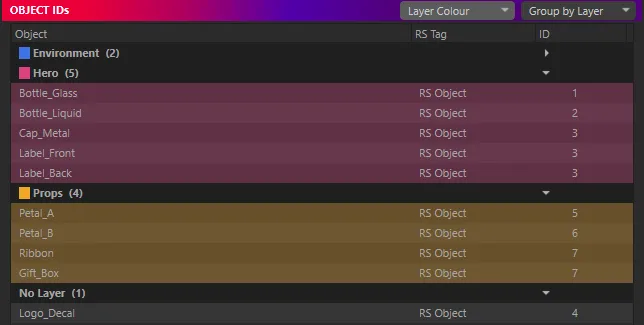
| Layer Colour | Rows are tinted in the colour of the object’s (or material’s) Cinema 4D layer. Rows with no layer stay plain. |
For objects, it is the object’s layer that counts, not the tag’s.
| Option | What it does |
|---|---|
| Scene Order | The default. Objects in Object Manager order, materials in Material Manager order. |
| Sort by ID | Lowest ID first. Rows with the same ID keep their scene order. |
| Group by Layer | One collapsible group per layer, alphabetically, with the layer’s colour and how many rows it holds. No Layer comes last. Inside each group, rows are sorted by ID. |
Groups you collapse stay collapsed while you work.
Finding a free ID
Section titled “Finding a free ID”The footer shows Highest Object ID and Highest Material ID. One above either is always free. When you set several items with Unique IDs, RS ID Manager skips IDs already in use for you.