
Puzzle mattes & AOVs
A Redshift Puzzle Matte AOV holds three IDs, one each in its red, green and blue channels. RS ID Manager builds as many as your IDs need, in one go.
Create Puzzlematte AOVs
Section titled “Create Puzzlematte AOVs”Click Create Puzzlematte AOVs at the bottom of the panel. If Redshift’s AOV Manager is open, it closes while you choose your options, then opens again with the new AOVs so you can check them.
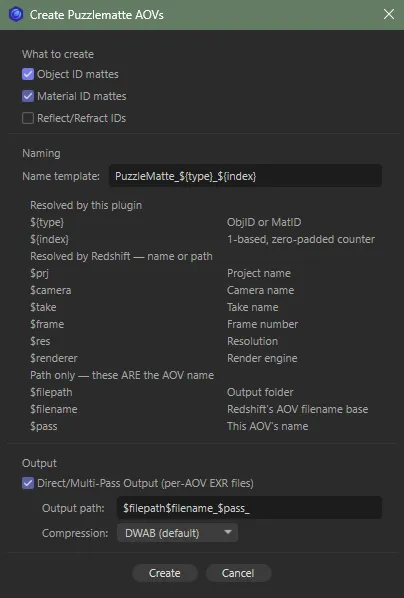
What to create
Section titled “What to create”| Option | What it does |
|---|---|
| Object ID mattes | One set of AOVs for the Object IDs. Greyed out when the scene has none. |
| Material ID mattes | One set for the Material IDs. Greyed out when there are none. |
| Reflect/Refract IDs | Switches on Redshift’s reflection and refraction option for the mattes, so the IDs show in reflections and refractions too. |
How the IDs are packed
Section titled “How the IDs are packed”Every different ID in the list is used once, lowest first, three to an AOV. The last AOV is padded with empty channels when the count isn’t a multiple of three. Seven Object IDs make three AOVs:
| AOV | Red | Green | Blue |
|---|---|---|---|
| PuzzleMatte_ObjID_01 | 1 | 2 | 3 |
| PuzzleMatte_ObjID_02 | 4 | 5 | 6 |
| PuzzleMatte_ObjID_03 | 7 | — | — |
The IDs come from the panel’s lists — every listed ID, not only the highlighted ones. Show both panes before you click, so both lists are up to date.
Naming
Section titled “Naming”Name template sets each AOV’s name. The default is PuzzleMatte_${type}_${index}. The dialog
lists the tokens you can use:
| Token | Becomes | Resolved by |
|---|---|---|
${type} |
ObjID or MatID |
RS ID Manager |
${index} |
the AOV’s number, from 01 | RS ID Manager |
$prj |
project name | Redshift |
$camera |
camera name | Redshift |
$take |
take name | Redshift |
$frame |
frame number | Redshift |
$res |
resolution | Redshift |
$renderer |
render engine | Redshift |
$pass and $userpass can’t be used in the name: both stand for the AOV’s own name, so the name
would repeat inside itself. If your template has either, RS ID Manager removes it, tells you, and
shows the name it used instead. They belong in the output path.
Output
Section titled “Output”By default the mattes go into Redshift’s multi-pass output with your other AOVs. Tick Direct/Multi-Pass Output (per-AOV EXR files) to write each matte to its own OpenEXR file instead. Two more settings appear:
- Output path — defaults to
$filepath$filename_$pass_, the same path Redshift gives a Puzzle Matte you add by hand, so the files land in your project’s output folder next to the beauty. Redshift fills in the tokens at render time:$filepathis the output folder,$filenamethe file name base and$passthe AOV’s name. The trailing underscore keeps the frame number apart:…_PuzzleMatte_ObjID_01_0001.exr. To write into a subfolder per project, use something like$filepath$prj/$filename_$pass_. - Compression — None, Default (Redshift), RLE, ZIP, ZIPS, PIZ, PXR24, B44, DWAA or DWAB (the default) — the same list, in the same order, as Redshift’s own AOV Manager. DWAB keeps the files small.
Click Create. The whole operation is one step in Edit ▸ Undo.
Updating the mattes
Section titled “Updating the mattes”Once the scene has puzzle mattes from RS ID Manager, the button reads Update Puzzlematte AOVs
and the dialog Update. Updating removes the existing PuzzleMatte_ AOVs and builds them again
from the IDs now in the scene, so run it whenever you add or change IDs. Your other AOVs are left
alone.
Create ID AOV List
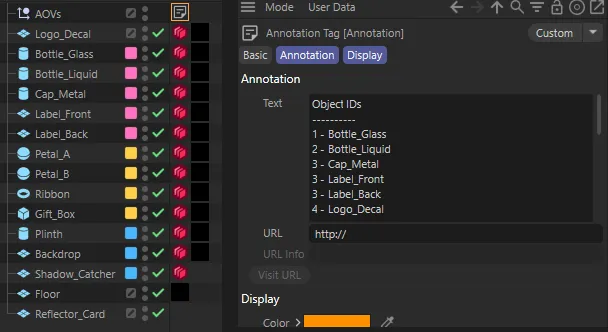
Section titled “Create ID AOV List”Create ID AOV List adds a null named AOVs at the top of the Object Manager, with an Annotation tag listing every ID:
Object IDs----------1 - Car_Body2 - Wheel_FL…
Material IDs------------1 - Chrome…
Each list is sorted by ID. It is a handy key for whoever composites the shot. When the null exists, the button reads Update ID AOV List and rewrites the note. Like the mattes, it uses the panel’s lists, and it can be undone.
When it can’t
Section titled “When it can’t”- No IDs found in scene. — neither pane lists anything yet. Set some IDs first.
- No Redshift render settings found. — the active render setting doesn’t use Redshift. Choose Redshift as the renderer in Render Settings.