
The panel
Open the panel from Extensions ▸ RS ID Manager (or the Chroma menu). From top to bottom:
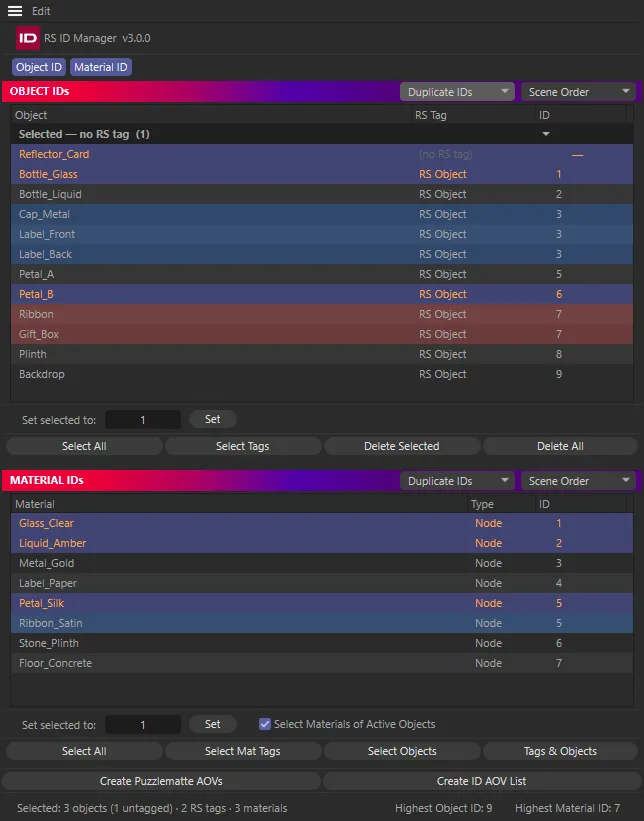
Title row and menu
Section titled “Title row and menu”- The icon at the left of the title row opens the licence window. See Licensing & support.
- Edit ▸ Preferences… opens RS ID Manager’s page in Cinema 4D’s Preferences. See Preferences.
- Edit ▸ License… opens the same licence window as the icon.
When the panel is short — docked under another manager, say — the title row hides itself to leave more room for the lists, and comes back when there is space again.
The Object ID and Material ID tabs choose which panes you see. Click one to show only that pane; Shift-click the other to show both. At least one pane is always shown, and your choice is remembered.
With both panes showing, drag the gap between them to change how much room each gets. The split is remembered too.
The panes
Section titled “The panes”Each pane starts with a coloured title bar — OBJECT IDs or MATERIAL IDs — with two menus at its right:
- Row colour: No Colour, Duplicate IDs (the default) or Layer Colour.
- Order: Scene Order (the default), Sort by ID or Group by Layer.
Both are per pane and remembered. See Duplicates, colours & order.
Below the title bar is the list itself:
| Pane | Columns |
|---|---|
| OBJECT IDs | Object · RS Tag · ID |
| MATERIAL IDs | Material · Type (Node or Xpresso) · ID |
The lists are native Cinema 4D tree views: no row limit, smooth scrolling, and the name column widens with the panel. An empty pane says how to get started.
Highlighted rows are what is selected in Cinema 4D — the panel has no selection of its own. See Selection.
Set selected to
Section titled “Set selected to”Under each list, Set selected to: writes an ID to whatever is selected: type a number and click Set. The materials pane adds a Select Materials of Active Objects switch, on by default. The details are in Object IDs and Material IDs.
Pane buttons
Section titled “Pane buttons”OBJECT IDs
| Button | What it does |
|---|---|
| Select All | Selects every listed object in the Object Manager. |
| Select Tags | Selects the RS Object tags of the highlighted rows. |
| Delete Selected | Deletes the RS Object tags of the highlighted rows, after asking. |
| Delete All | Deletes every listed RS Object tag, after asking. |
MATERIAL IDs
| Button | What it does |
|---|---|
| Select All | Selects every listed material in the Material Manager. |
| Select Mat Tags | Selects the material tags that use the highlighted materials. |
| Select Objects | Selects the objects that carry those material tags. |
| Tags & Objects | Selects both the material tags and their objects. |
Deleting tags is undoable with Edit ▸ Undo, like any other change the panel makes to your objects.
AOV buttons
Section titled “AOV buttons”- Create Puzzlematte AOVs packs your IDs into Redshift Puzzle Matte AOVs. It reads Update Puzzlematte AOVs once the scene has them.
- Create ID AOV List adds a null with a note listing every ID. It reads Update ID AOV List once the null exists.
See Puzzle mattes & AOVs.
Footer
Section titled “Footer”The bottom line shows what is selected in Cinema 4D — for example Selected: 3 objects (1 untagged) · 2 RS tags · 4 materials — which is exactly what Set will write to. At the right are Highest Object ID and Highest Material ID, handy when you want the next free number.
Docking and folding
Section titled “Docking and folding”Dock the panel like any Cinema 4D manager and save your layout to keep it. Once it is docked, choosing Extensions ▸ RS ID Manager again folds the panel away in its slot, and choosing it once more unfolds it in the same place. The command’s icon is highlighted while the panel is showing.
The panel keeps itself up to date as you work. Moving the camera or changing the selection never makes it rescan the scene.